
Guide: Slovakia Onboarding (EN)
Select Unimaze as your service provider on the Financial Administration Portal, step by step.
By registering on the Financial Administration Portal and selecting Unimaze as your Service Provider (SP), you enable sending and receiving electronic invoices through the network. The entire registration process is completed online.
1. Selecting Unimaze as your Service Provider
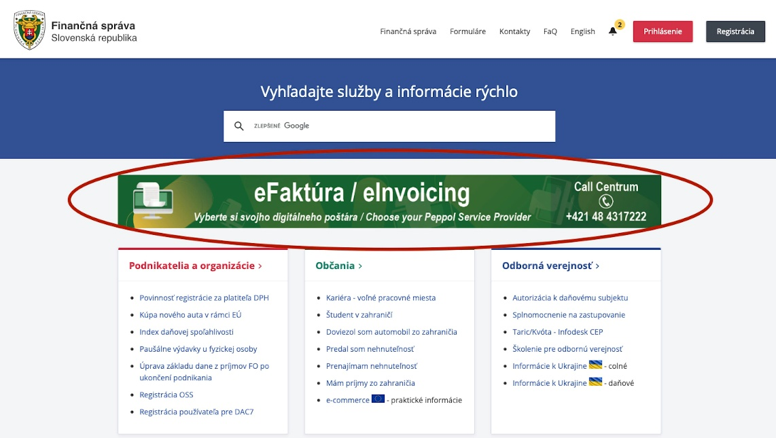
1.1 On the Financial Administration Portal, available at https://www.financnasprava.sk/sk/titulna-stranka, click the green eFaktúra/eInvoicing button.
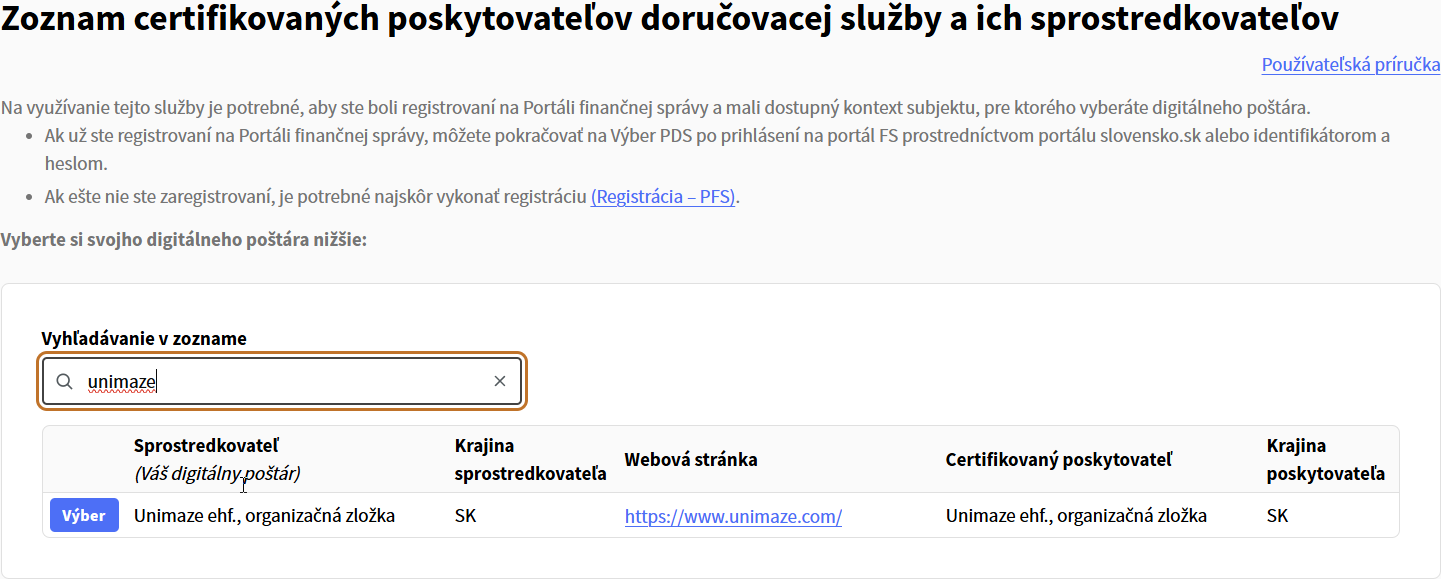
1.2 A list of certified Service Providers and their Intermediaries is displayed. The list is available even without logging in.
1.3 Search for Unimaze in the list (Vyhľadávanie v zozname) and click Select (Výber) in the Unimaze row.
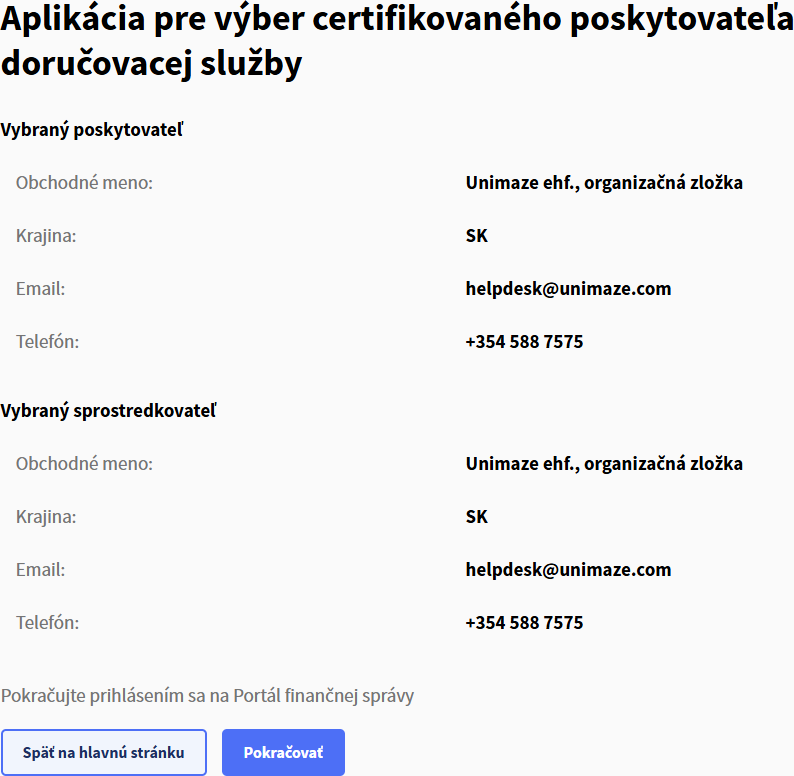
1.4 A screen with detailed information about the selected Service Provider and Intermediary is displayed. Verify that the information is correct and click Continue (Pokračovať).
2. Logging into the Financial Administration Portal
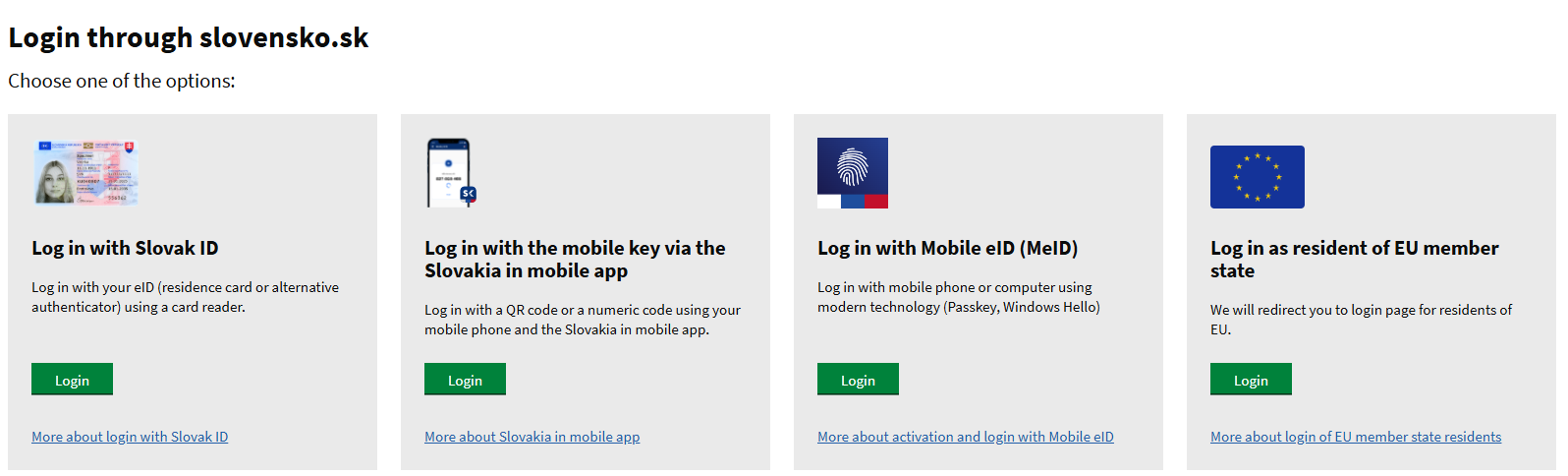
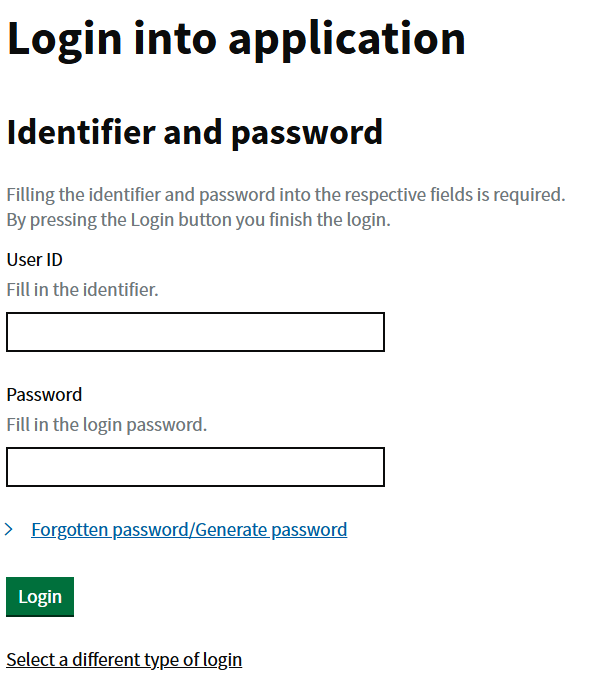
2.1 After clicking Continue (Pokračovať), you are prompted to log in. You can log in in either of the following ways:
-
Via the slovensko.sk portal, using an electronic identification card with a chip (eID), a residence permit with a chip, the Slovensko v mobile application, or an authentication method issued in an EU Member State.
-
Identifier and password, by entering your user ID and password directly on the Financial Administration Portal.
3. Access confirmation
3.1 When you use the application for the first time, you are asked to confirm access to your data. The application requests access to:
- Identification: identification of the user and the user account on the Financial Administration Portal.
- Provision of the list of entities: Tax Identification Number (DIČ), Company Identification Number (IČO), business name and address.
- Entity selection: legal basis for acting on behalf of the entity, and the scope of authorisation on the Financial Administration Portal.
Click Continue to grant access.
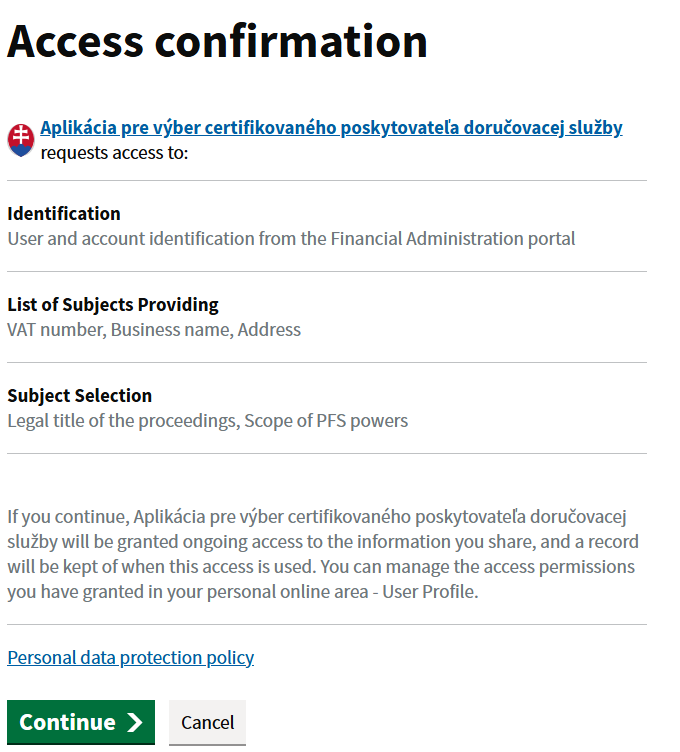
You cannot continue with the Service Provider selection unless access is confirmed. If you click Cancel, you are returned to the main page with the list of Service Providers as a user who is not logged in.
4. Selecting the taxpayer
4.1 In the Select taxpayer (Výber daňového subjektu) drop-down field, select the entity on whose behalf you are completing the registration.
4.2 The entity's details are then displayed automatically, including its Company Identification Number (IČO), Tax Identification Number (DIČ), street (ulica), building number (číslo), postal code (PSČ) and municipality (obec).
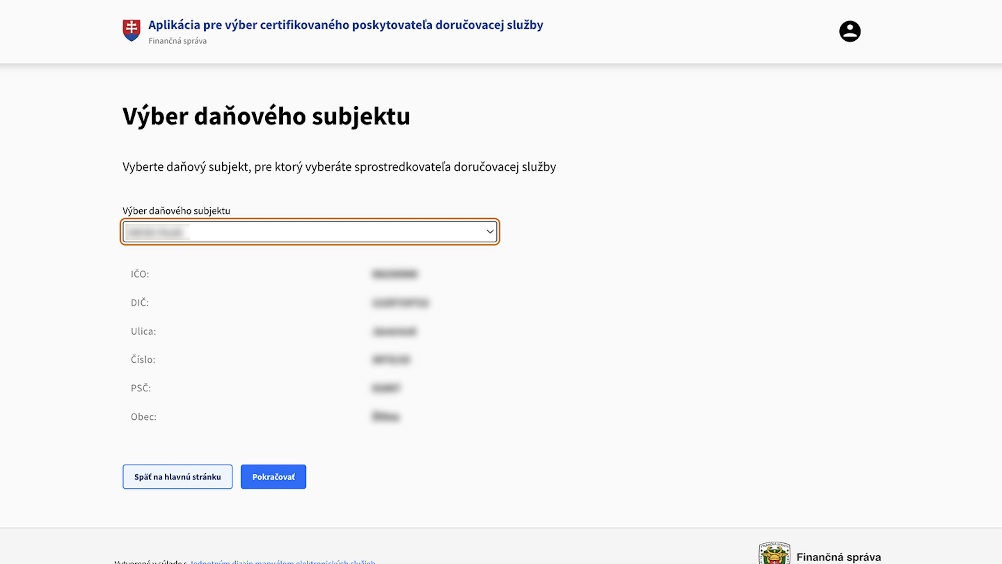
A Service Provider can only be selected for an entity that has been assigned and notified of a Tax Identification Number (DIČ). If you select an entity without a DIČ, the system displays an error message and you cannot continue.
4.3 Click Continue (Pokračovať).
5. Entering the taxpayer's contact details
5.1 On the Taxpayer contact details screen (Kontaktné údaje daňového subjektu), verify the pre-filled business name and Tax Identification Number (DIČ).
5.2 Complete the mandatory Email and Phone (Telefón) fields for the taxpayer.
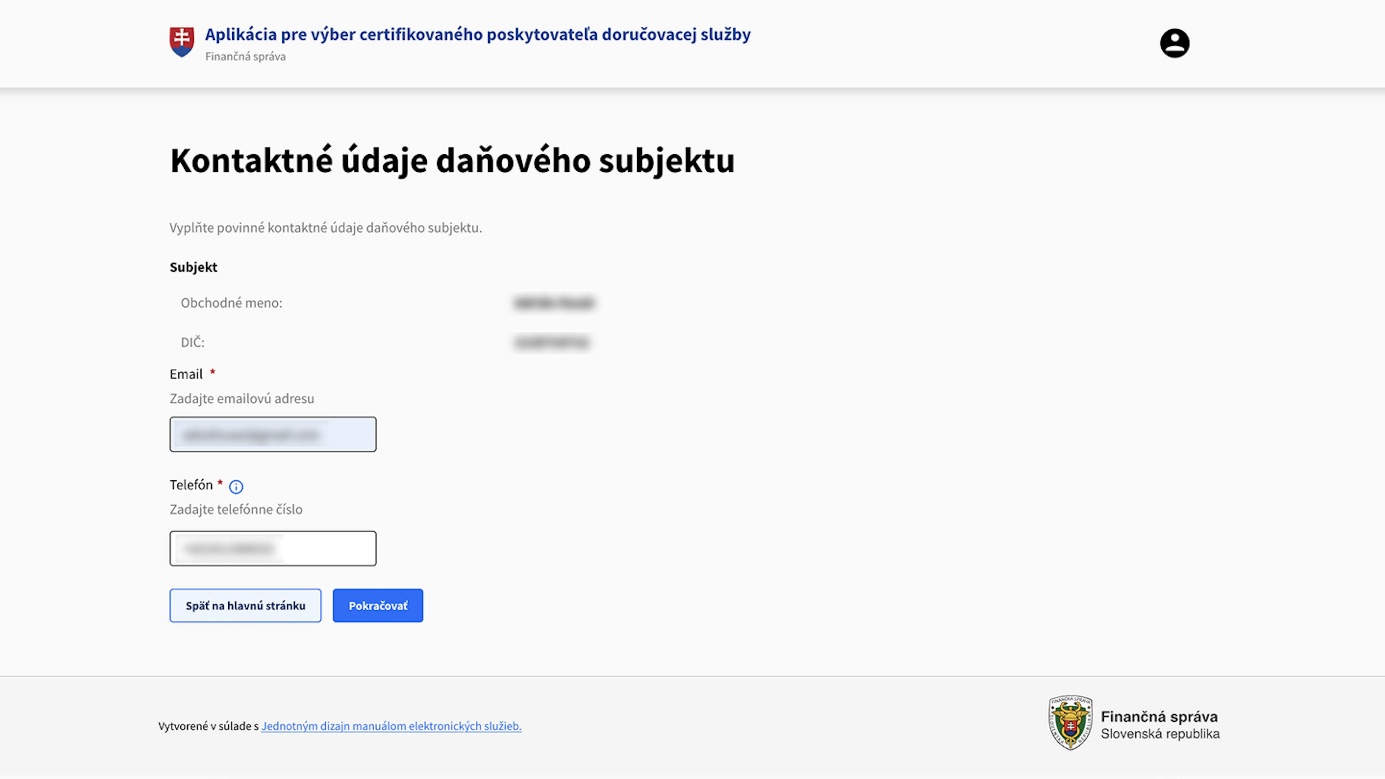
5.3 Enter the phone number in international format, for example +421 9xx xxx xxx.
5.4 Click Continue (Pokračovať).
Both fields are mandatory. If the email address or phone number is in an incorrect format, the system displays an error message and you cannot continue.
6. Granting consent to provide taxpayer data
6.1 On the Consent to provide taxpayer data screen (Povolenie pre poskytnutie údajov subjektu), verify the pre-filled details of the taxpayer and the selected Intermediary, Unimaze ehf., organizačná zložka.
6.2 Click Allow (Povoliť).
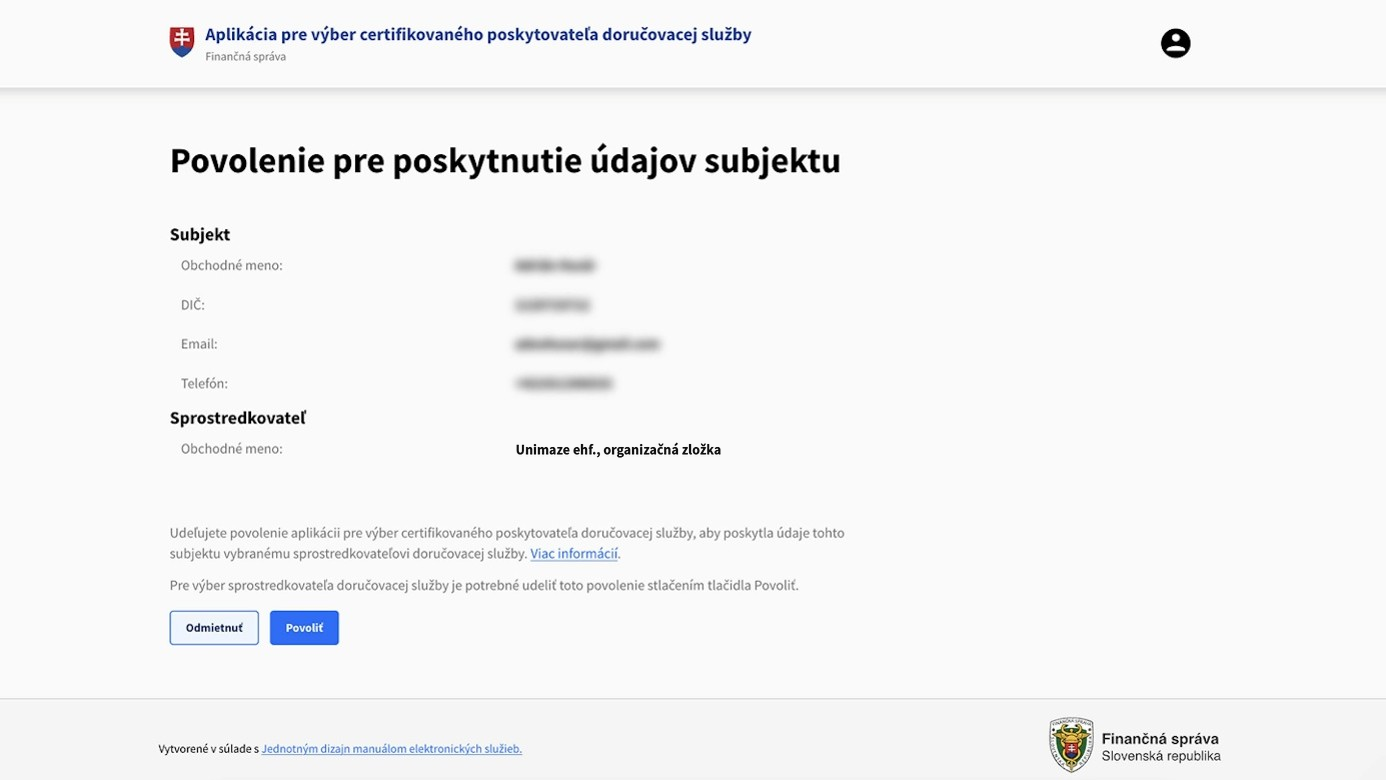
If you click Decline (Odmietnuť), the Consent not granted screen (Neudelenie povolenia) is displayed and you cannot continue. You are returned to the main page with the list of Service Providers.
7. Reviewing and submitting the application
7.1 On the Submission of taxpayer data screen (Odoslanie údajov subjektu), review the summary of all entered information: the taxpayer, the Intermediary and the Service Provider.
7.2 If the information is correct, click Continue (Pokračovať). The system submits the application.
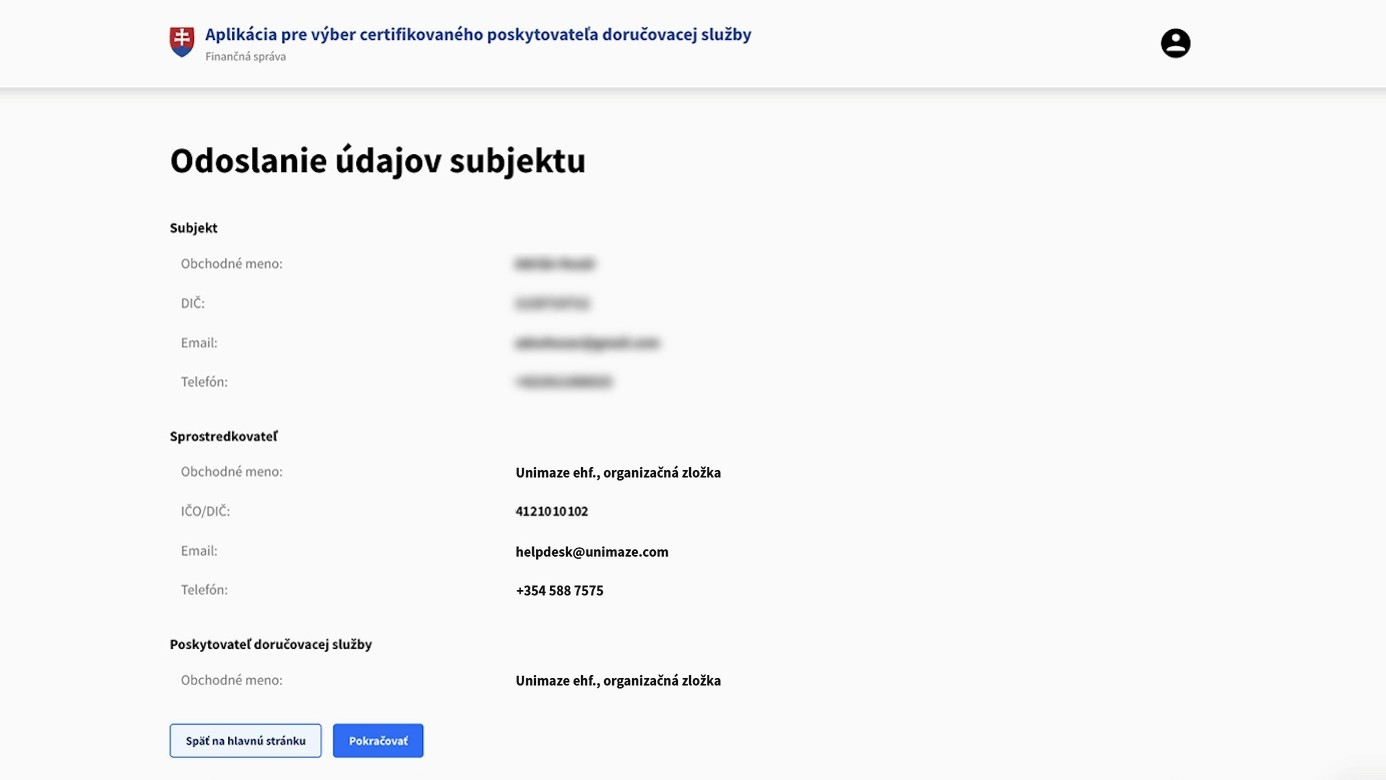
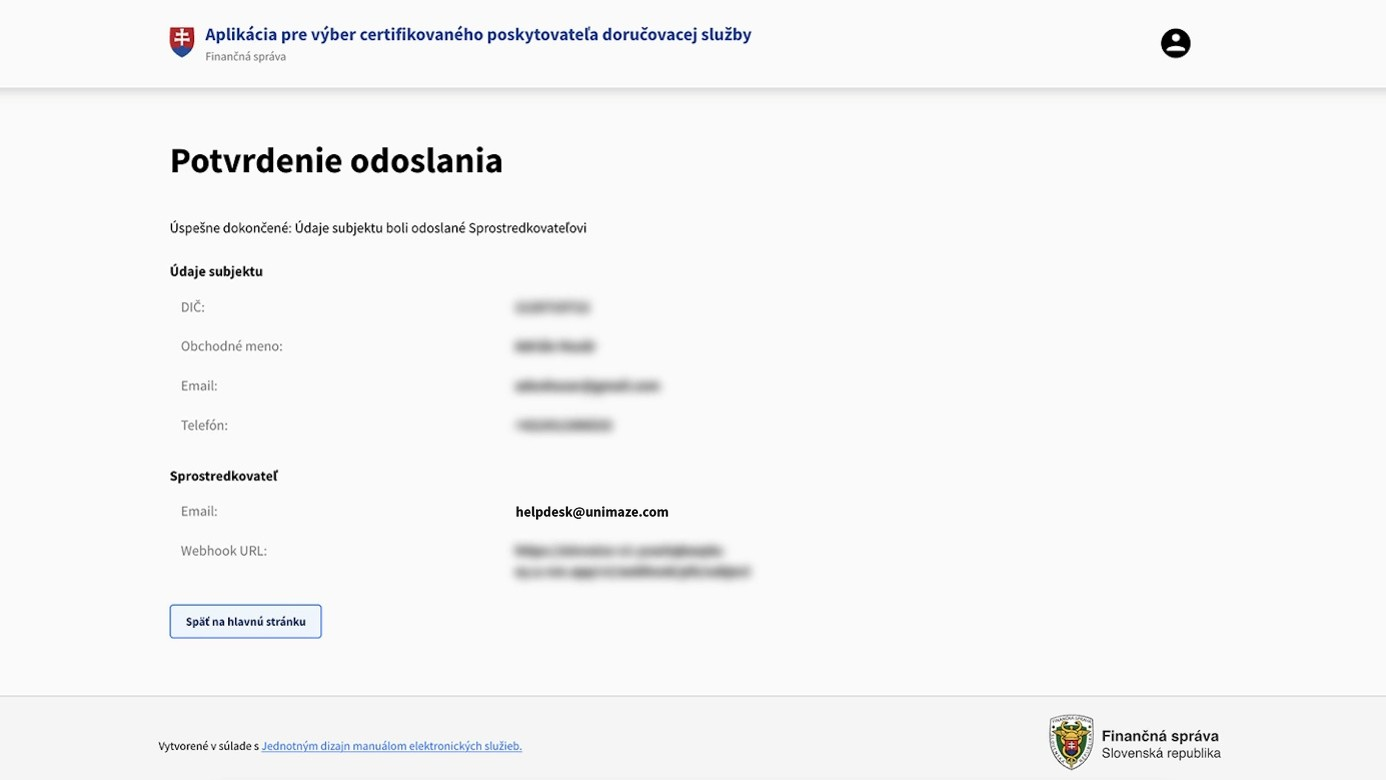
7.3 The final Submission confirmation screen (Potvrdenie odoslania) is displayed. The registration is complete.
If you have already submitted an application for the same taxpayer and the same Intermediary, the system displays a duplicate selection warning. You can choose whether to continue.
8. After registration
8.1 Once the application is submitted, a message confirming the submission of the application to select a certified Service Provider is delivered to your message inbox in the Personal Internet Zone (Osobná internetová zóna, OIZ) on the Financial Administration Portal. You can review the submitted application under Entity information → Overview of SP applications.
8.2 At the same time, an email notification of your selection is sent automatically to the selected Intermediary, Unimaze.
Updated 8 days ago