
Guide: Croatia Onboarding
This is a step-by-step guide to using onboarding a company on production on the Croatian network.
In this guide we present how to:
Set up Unimaze to represent a client for eFiscalization, i.e. for tax reporting and other fiscal actions.
Set up Unimaze to represent a client for eInvoicing, the sending and receiving of electronic invoices and credit notes.
For integration, sending and receiving electronic business documents from a backend, such as an ERP system:
- For working with JSON metadata, please refer to Guided Tour: Transaction Services.
- For working with raw XML, please refer to Guided Tour: Messaging Services.
Tax reporting and fiscal actions
For Unimaze to send reports to the Croatian Tax Authority on behalf of the client, it must be registered with Ministarstvo Financija, Porezna Uprave via their web site.
Unimaze can then:
-
Report inbound and outbound invoices and credit notes in near real-time:
-
A fiscal report is submitted for invoices and credit notes sent or received electronically on the network (an e-invoice, as defined by the Croatian legislation).
-
A taxable deliveries report is submitted for invoices and credit notes that cannot be delivered on the network (submitted to us and **sent by e-mail for example, sent to other networks, delivered externally by ERP system).
-
-
Report payments registered by the supplier.
-
Report rejections registered by the customer.
Setting up Unimaze to represent client for fiscalization
For registering Unimaze with the Tax Authorities to act on their behalf for fiscalization:
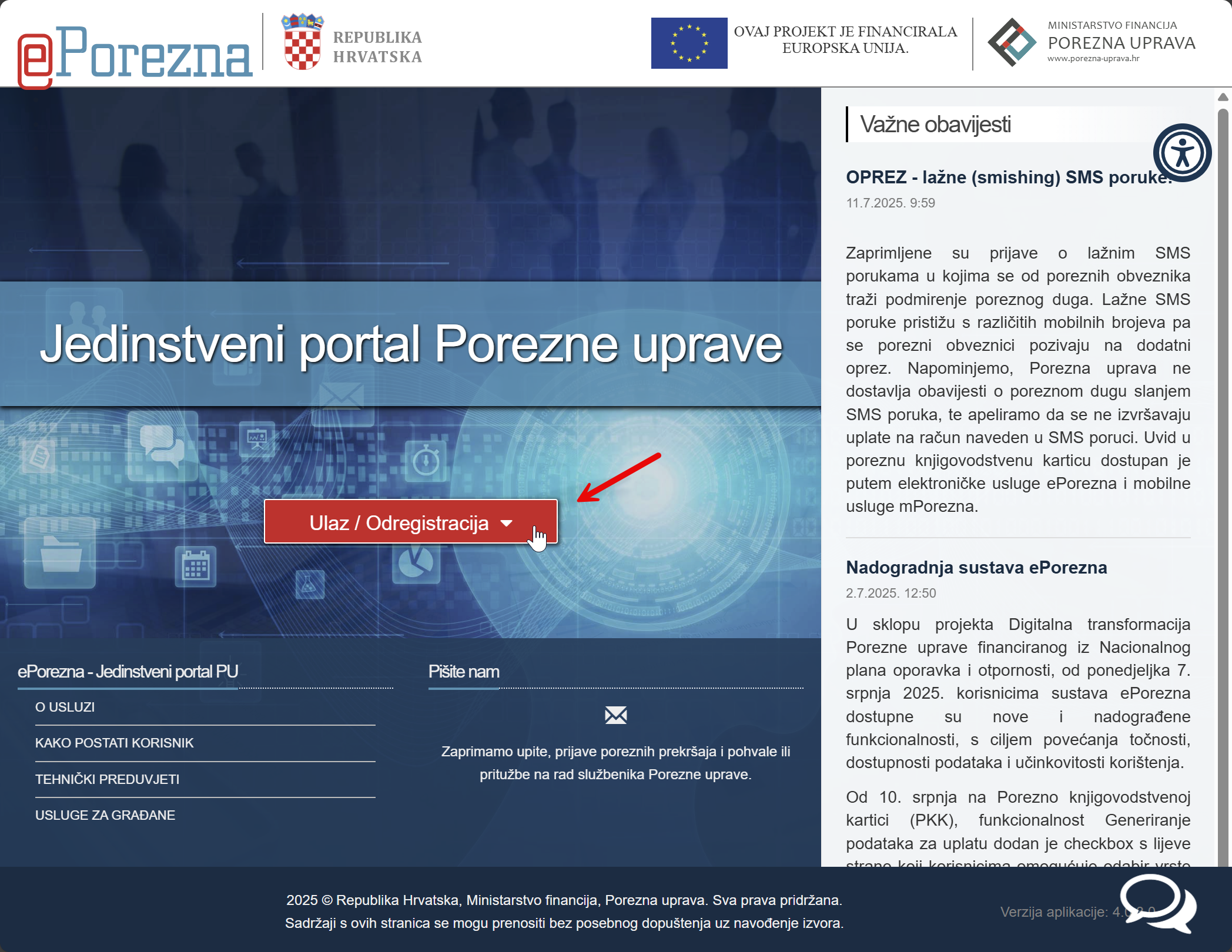
- Go to the Tax Authority's website: https://e-porezna.porezna-uprava.hr and log in.
-
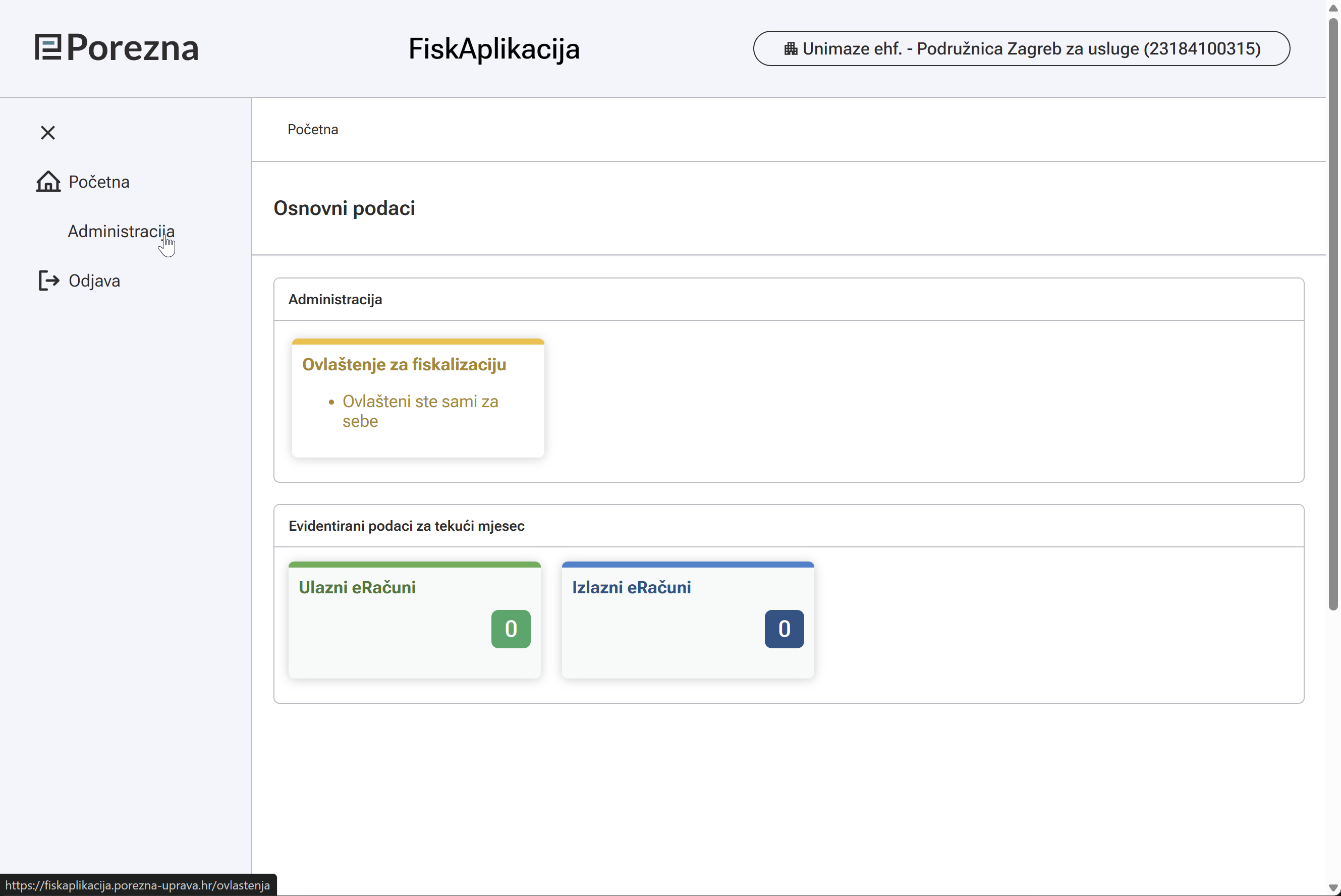
Once logged in, from the main page find FiskAplikacija and click on it to open the application.
-
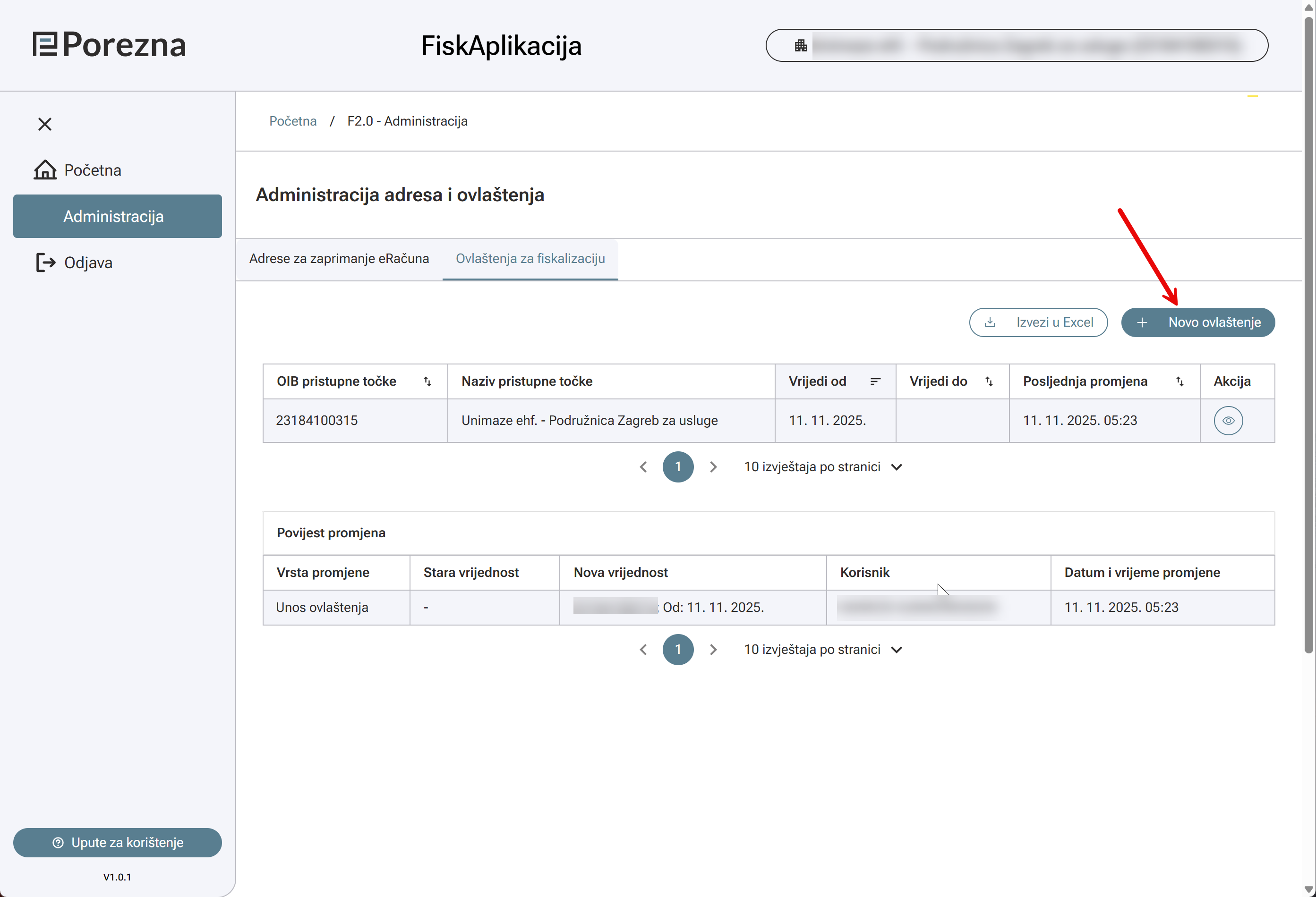
Once inside the application, find the menu option Administracija and open it.
-
In there, click the option Novo ovlaštene (new authorization). This will open a dialog.
-
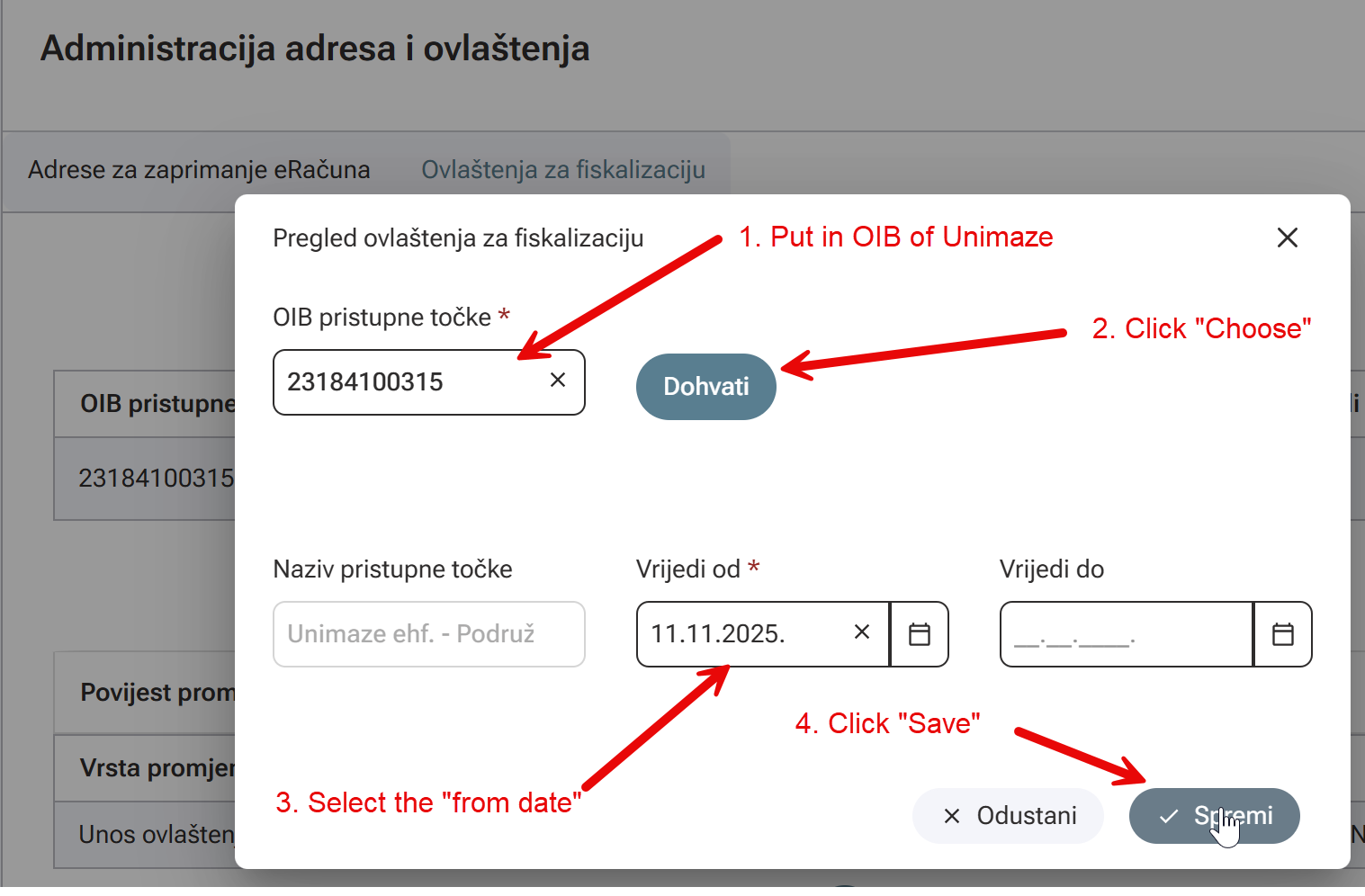
In the dialog enter Unimaze OIB number: 23184100315 and click Dohvati (choose). In the Virjedi od (valid from) field, enter today's date, then click Spremi (save).
-
The eFiscalization registration is now complete
If fiscalization is configured for your company and Unimaze can act on your behalf:
- Tax reporting will happen automatically for sent and received invoices and credit notes.
- You can register payments (as supplier) and reject (as customer).
Setting up Unimaze to represent client for electronic invoicing
For Unimaze to represent a company for e-invoicing, Unimaze must register the company in the central registry, and the company must then approve the registration to activate it.
For registration, please follow these steps.
-
Provide Unimaze help desk with the OIB number of the company.
-
Unimaze will register the company in the central registry, for both production and test environments.
-
In the same FiskApplikacija used for registering fiscalization in the previous section (follow steps 1 and 2).
-
On the dashboard, the following approval request option will appear:
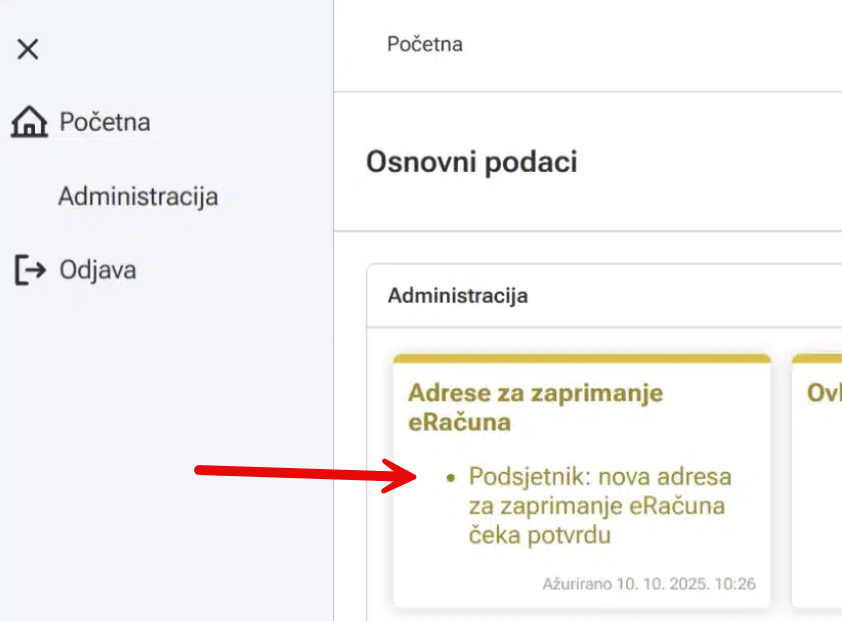
-
A dialog will appear. Please confirm that Unimaze OIB is presented there for Pristupne točke (access point).
There click Potvrdi (Confirm).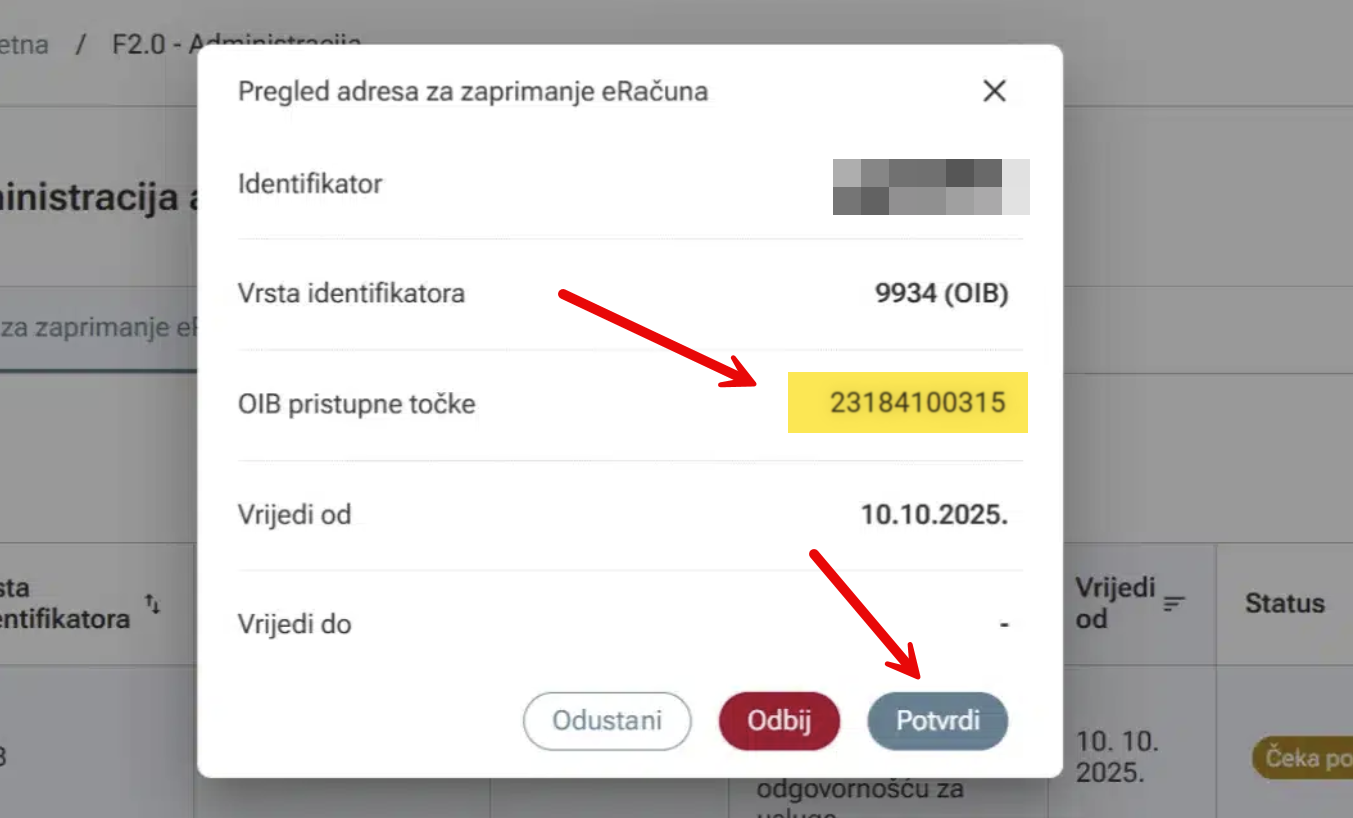
-
You will be presented with a confirmation dialog. Click Potvrdi (Confirm) again.
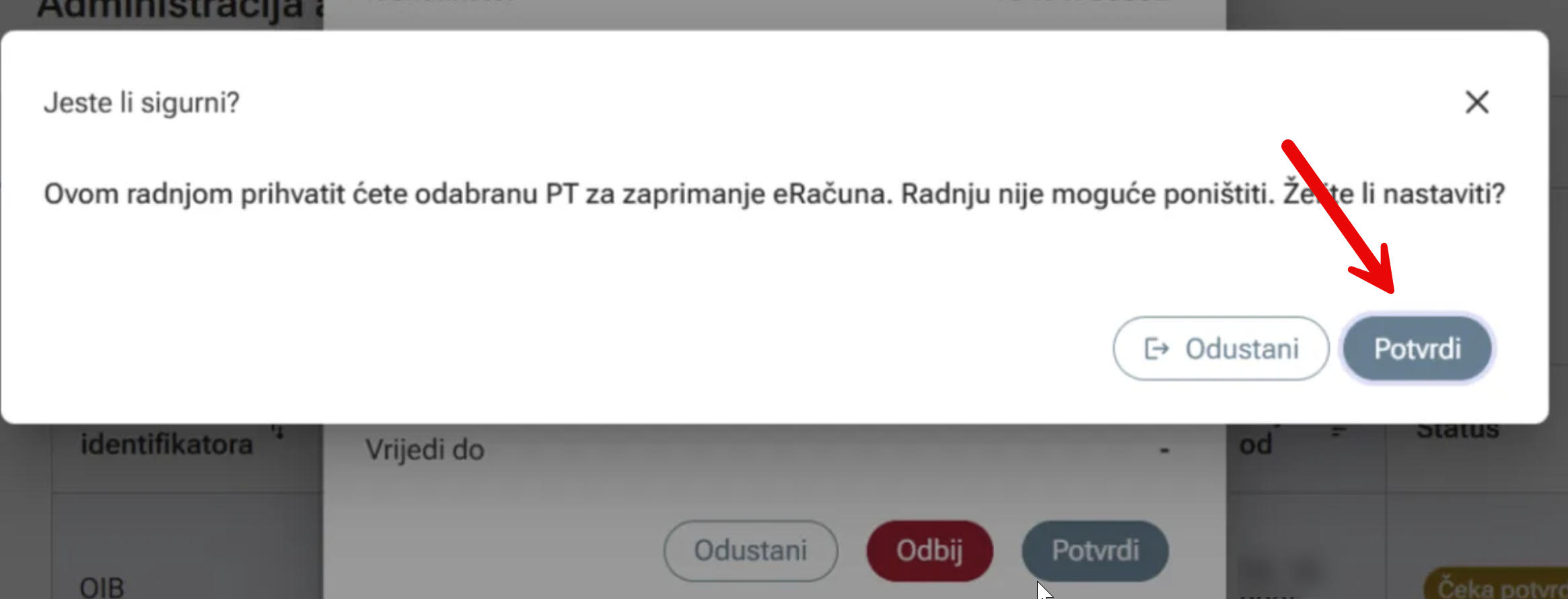
-
The registration for eInvoicing should now be complete and active.
Please inform Unimaze to validate the registration is active, if desired.
Updated 4 days ago